Product photography can make or break your Shopify store's conversion rate. Studies show that 75% of online shoppers rely on product photos when making purchasing decisions, yet many store owners struggle with one fundamental challenge: removing backgrounds from product images to create clean, professional listings that drive sales.
Whether you're launching a new Shopify store or optimizing an existing catalog with hundreds of products, background removal is no longer optional. Clean product images with transparent or white backgrounds load faster, look more professional, and perform better across all sales channels. This comprehensive guide walks you through three proven methods to remove backgrounds from your Shopify product photos, from AI-powered automation to manual editing techniques.
Why Background Removal Matters for Shopify Stores
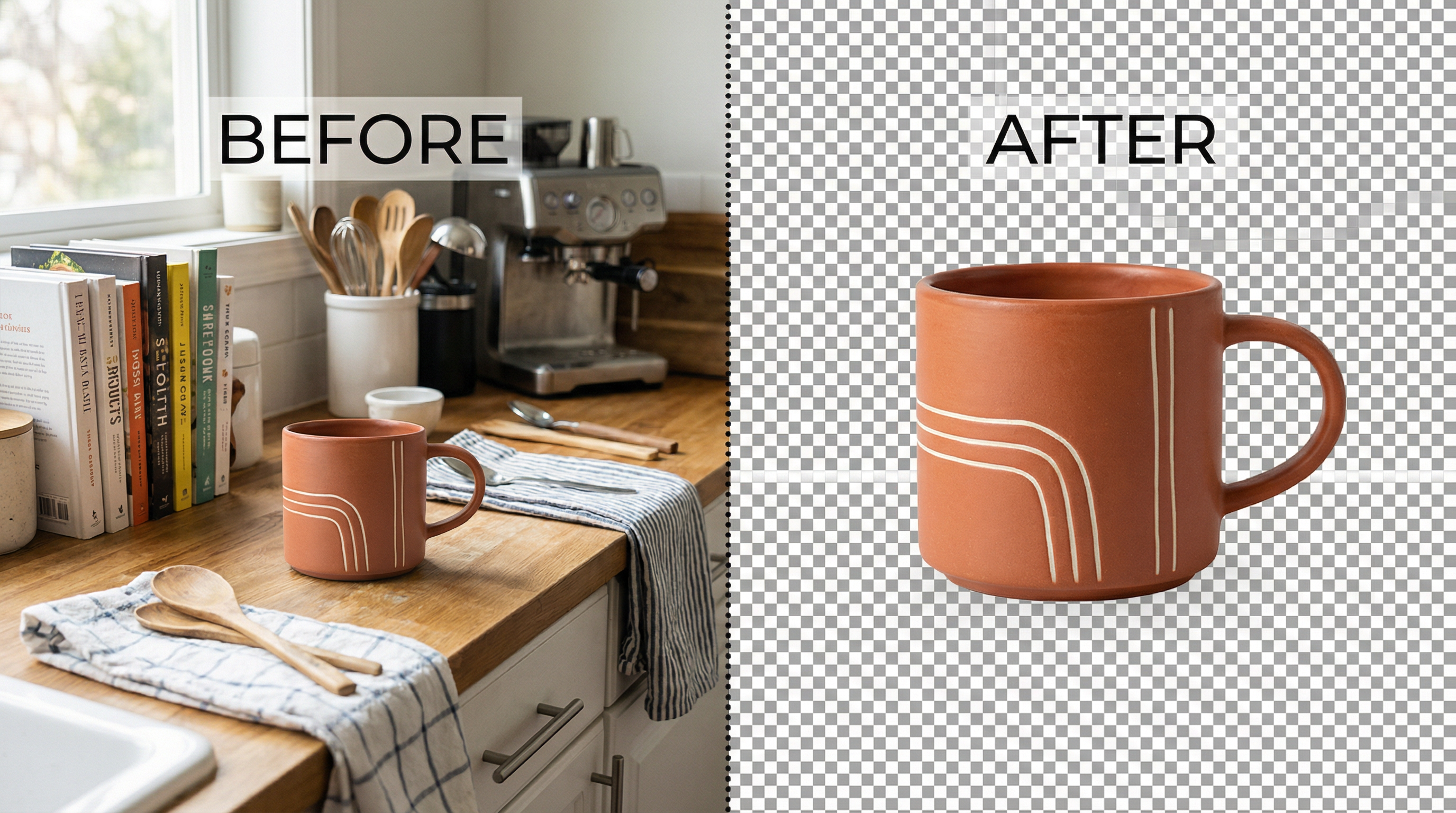
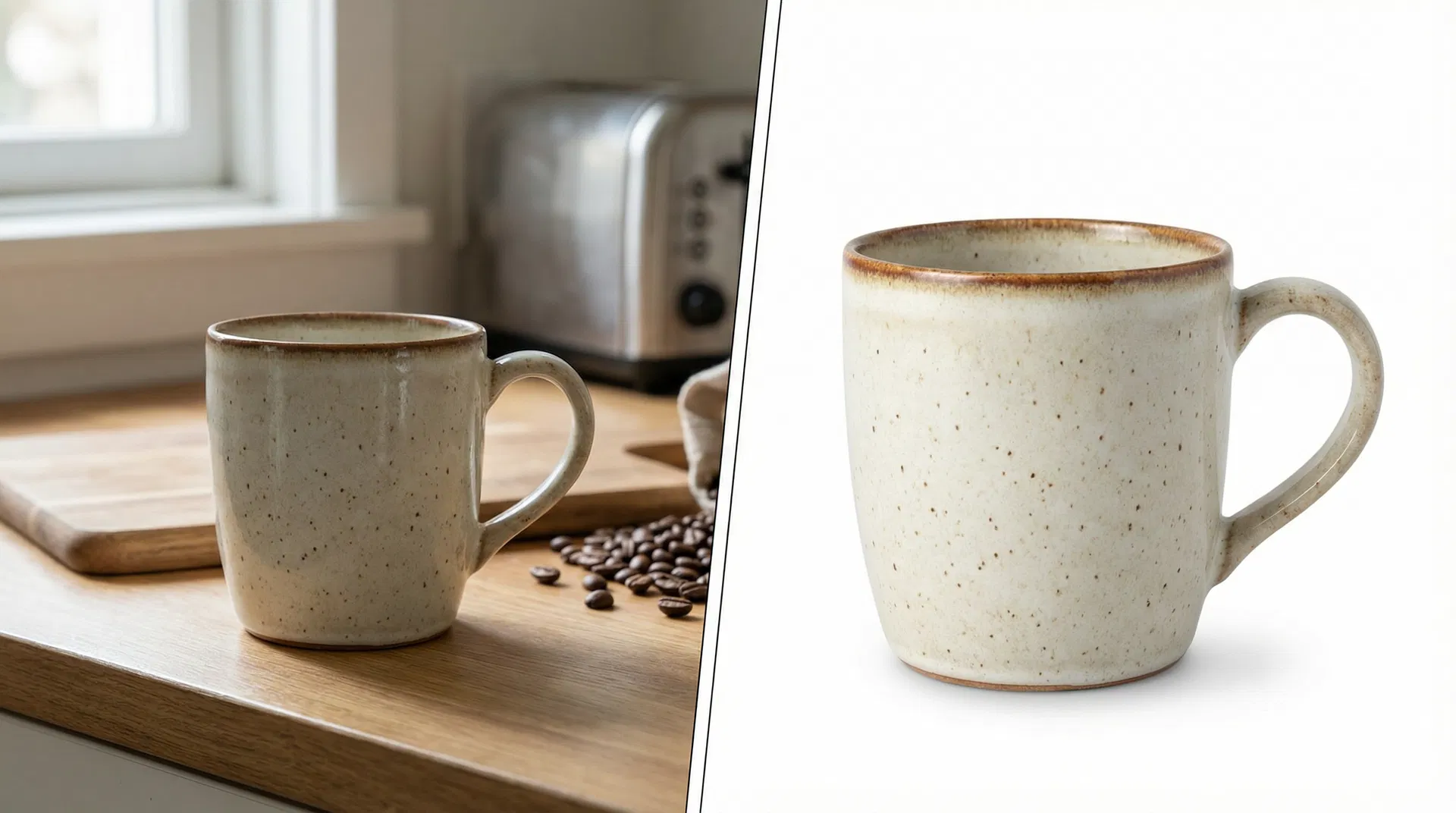
Background removal transforms amateur product photos into professional ecommerce assets. The difference is immediately visible: a cluttered kitchen counter disappears, revealing only your handcrafted ceramic mug. A wrinkled bedsheet vanishes, leaving your jewelry piece floating elegantly against pure white.
Professional product images with clean backgrounds increase customer trust and reduce bounce rates. When shoppers browse your Shopify store, they make split-second judgments about product quality based on image presentation. Clean backgrounds signal professionalism and attention to detail, two qualities that directly influence purchasing decisions.
Beyond aesthetics, background removal solves practical problems. Transparent backgrounds allow your products to seamlessly integrate with your Shopify theme's design, regardless of color scheme. White backgrounds meet marketplace requirements for Amazon, Walmart, and Google Shopping integrations. Consistent image styling across your entire catalog creates a cohesive brand identity that customers recognize and remember.
The technical benefits matter too. Images with removed backgrounds typically have smaller file sizes than originals, especially when saved as optimized PNG or WebP files. Faster-loading product pages improve both user experience and search engine rankings, giving you a competitive advantage in organic search results.
Method 1: AI-Powered Background Removal Tools (Fastest)
Artificial intelligence has revolutionized background removal, reducing a task that once required hours of manual work to mere seconds. Modern AI tools analyze your product photo, identify the subject with pixel-perfect accuracy, and remove the background automatically while preserving fine details like hair, fur, or transparent materials.
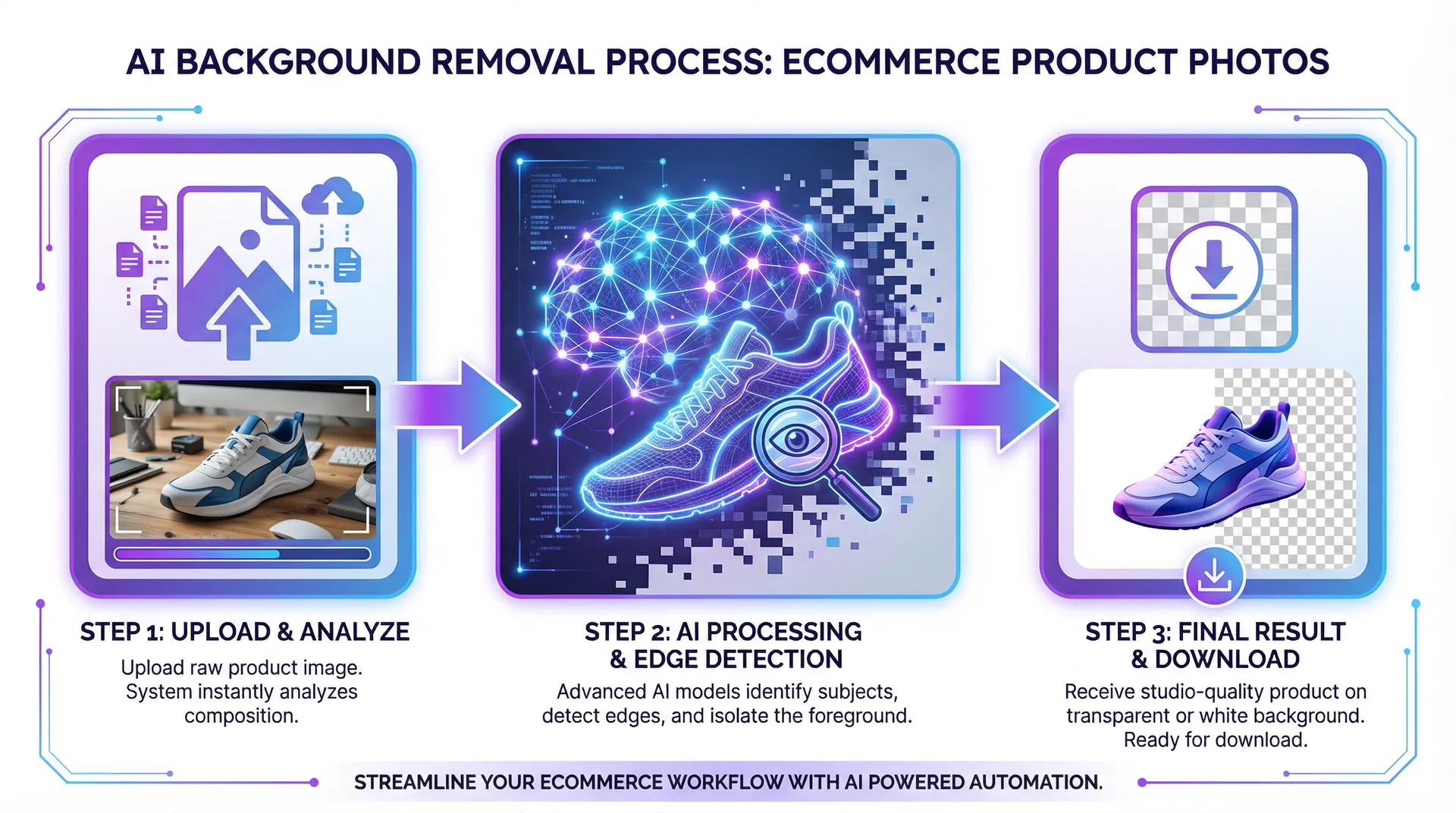
How AI Background Removal Works
AI background removal tools use machine learning models trained on millions of images to distinguish between foreground subjects and backgrounds. When you upload a product photo, the algorithm identifies edges, textures, and patterns to create a precise selection mask. The background is then removed, leaving only your product with clean, anti-aliased edges that look natural even when placed on different backgrounds.
The best AI tools handle complex scenarios that challenge traditional selection methods. Transparent glass products, reflective jewelry, furry pet accessories, and products with intricate cutouts all process accurately. Advanced algorithms preserve subtle details like wispy hair strands or delicate lace patterns that manual editing often destroys.
Step-by-Step: Using TrustedToolkit for Shopify Product Photos
TrustedToolkit offers a streamlined workflow specifically designed for ecommerce sellers. The platform combines professional-grade AI with user-friendly features that make bulk processing effortless.
Upload Your Product Photos
Navigate to the background removal tool and upload your product images. The platform accepts all standard formats including JPEG, PNG, and WebP. You can upload individual photos or process up to ten images simultaneously for batch operations. Drag-and-drop functionality makes uploading quick, even when working with large product catalogs.
Choose Your Background Option
Select your preferred background style from the preset options. Pure white backgrounds (RGB 255,255,255) work best for marketplace integrations and create a clean, professional look. Transparent backgrounds offer maximum flexibility, allowing your products to blend seamlessly with any theme color or promotional graphic. Custom color backgrounds let you match your brand palette or create seasonal variations.
Download and Upload to Shopify
After processing completes, download your images in your preferred format. PNG files preserve transparency and work best for products you'll use across multiple backgrounds. WebP files offer superior compression while maintaining visual quality, reducing page load times. JPEG files work well for white background images where transparency isn't needed.
Upload the processed images directly to your Shopify product listings through the admin panel. Replace existing product photos or add new images to your media gallery. The clean backgrounds immediately improve your product presentation and create a more professional shopping experience.
Bulk Processing for Large Catalogs
Store owners with extensive product catalogs benefit enormously from bulk background removal capabilities. Processing hundreds or thousands of images individually would consume weeks of time. Bulk processing tools complete the same work in hours, freeing you to focus on marketing, customer service, and business growth.
Most AI platforms offer batch upload features that process multiple images concurrently. Upload your entire product photo folder, select your background preferences, and let the AI work through your queue. The system maintains consistent quality across all images, ensuring your catalog has uniform styling.
For maximum efficiency, organize your product photos before bulk processing. Group similar products together and apply consistent background settings to each category. This approach maintains visual cohesion while accommodating category-specific requirements like transparent backgrounds for apparel or white backgrounds for home goods.
Method 2: Manual Editing with Photoshop
Manual background removal gives you complete control over the final result, making it ideal for high-value products where perfection matters more than speed. Professional photographers and designers often prefer manual methods for complex products, hero images, or situations where AI tools struggle with unusual lighting or reflective surfaces.
Using the Pen Tool for Precision
The Pen Tool creates vector paths that define your product's exact outline. This method delivers the most accurate results for products with clean, defined edges. Click around your product's perimeter to create anchor points, then adjust the curves to match the contours perfectly. The resulting path can be converted to a selection and used to isolate your product from its background.
Precision comes at a cost: time. A single product photo can require 15-30 minutes of careful path creation, depending on complexity. However, the investment pays off for flagship products, homepage hero images, or situations where automated tools produce imperfect results.
Quick Selection and Refine Edge
Photoshop's Quick Selection tool offers a faster alternative for products with good contrast against their backgrounds. Paint over your product with the selection brush, and Photoshop automatically expands the selection to include similar colors and textures. The Refine Edge feature then smooths the selection boundary, removes color fringing, and handles semi-transparent areas like glass or mesh.
This method works best for products photographed against solid-color backgrounds with clear separation from the subject. Products with complex edges or low contrast require more refinement work, potentially negating the time savings compared to the Pen Tool approach.
When to Choose Manual Editing
Manual editing makes sense in specific scenarios despite the time investment. High-end products with complex reflections, transparent materials, or intricate details benefit from human judgment and artistic refinement. Products photographed in challenging lighting conditions may confuse AI algorithms but respond well to manual selection techniques.
Budget also plays a role. If you're just starting your Shopify store and have more time than money, learning manual editing skills provides a free alternative to paid AI tools. The skills you develop transfer to other image editing tasks, making the learning investment worthwhile beyond background removal alone.
Method 3: Shopify Apps and Integrations
Shopify's app ecosystem includes numerous background removal solutions that integrate directly with your store's admin panel. These apps eliminate the need to download, edit, and re-upload images by processing photos automatically as you add products or updating existing listings in bulk.
Automated Background Removal Apps
Several Shopify apps offer one-click background removal for product images. These apps typically use the same AI technology as standalone tools but integrate seamlessly with your Shopify workflow. When you add a new product, the app automatically detects the product image, removes the background, and saves the processed version to your media library.
Popular options include apps that process images on upload, scheduled batch processing for existing catalogs, and manual trigger options for selective processing. Integration with Shopify's admin interface means you never leave your store dashboard, streamlining your product management workflow.
Comparing Free vs. Paid Solutions
Free Shopify apps typically limit processing volume or image resolution. You might receive 10-50 free images per month before hitting usage caps. Image quality may be reduced compared to paid tiers, with lower resolution outputs or less sophisticated edge detection.
Paid apps remove these limitations and often include additional features like custom background colors, automatic image optimization, and priority processing. Monthly subscriptions range from $10 to $50 depending on processing volume and feature sets. For stores adding products regularly, paid apps quickly pay for themselves in time savings.
Integration Workflow Optimization
Maximize efficiency by configuring your background removal app to match your product workflow. Set default background preferences (white, transparent, or custom colors) based on your most common use case. Enable automatic processing for new products if your photography setup is consistent. Use manual triggers for products requiring special handling.
Combine background removal apps with other image optimization tools for a complete automated workflow. Apps that resize images, compress files, and add watermarks can chain together, processing each product photo through multiple enhancement steps without manual intervention.
Shopify-Specific Best Practices
Shopify's platform has specific image requirements and optimization opportunities that affect how you should approach background removal. Understanding these technical details ensures your processed images look great and perform well.
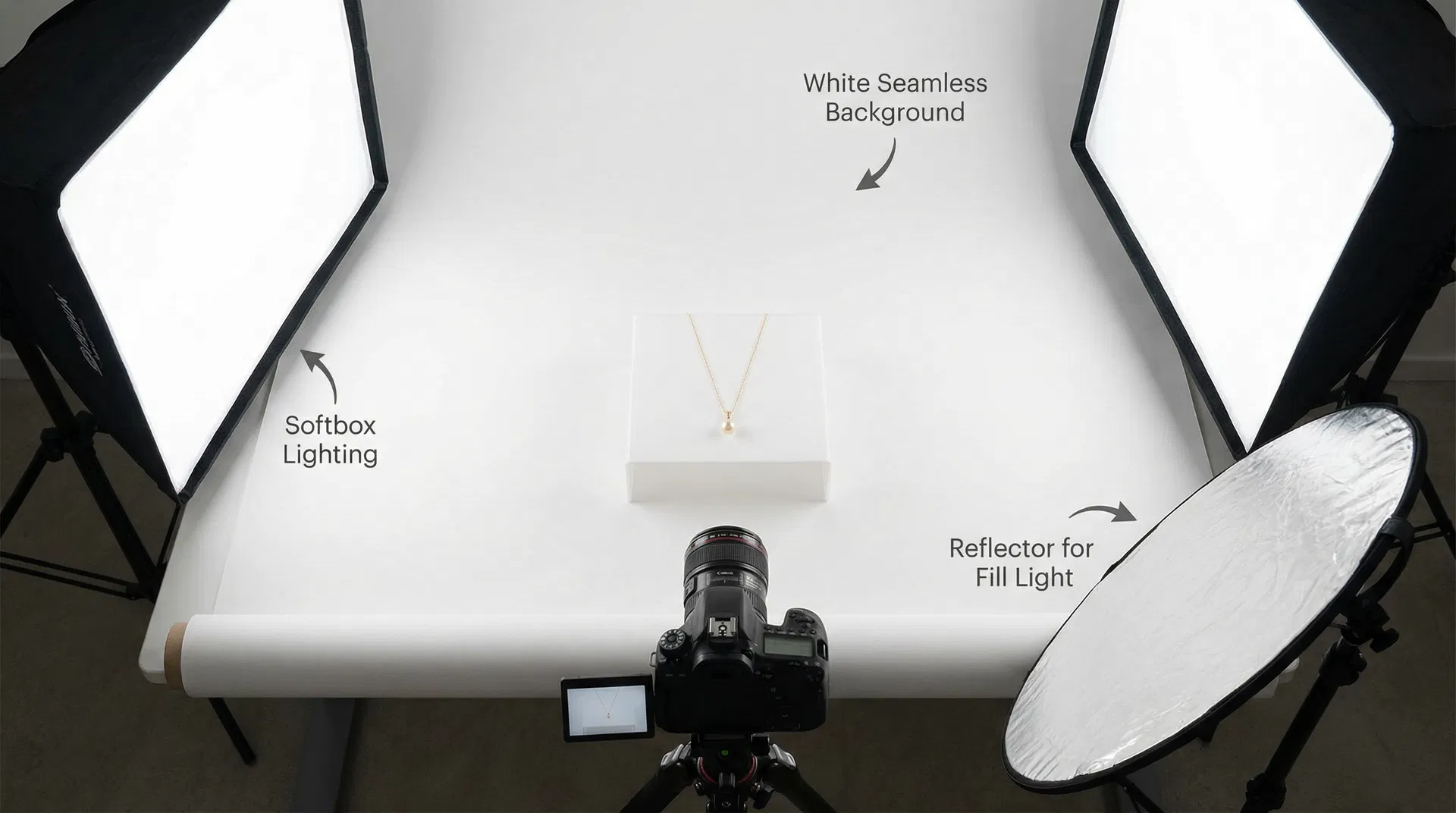
Optimal Image Specifications for Shopify
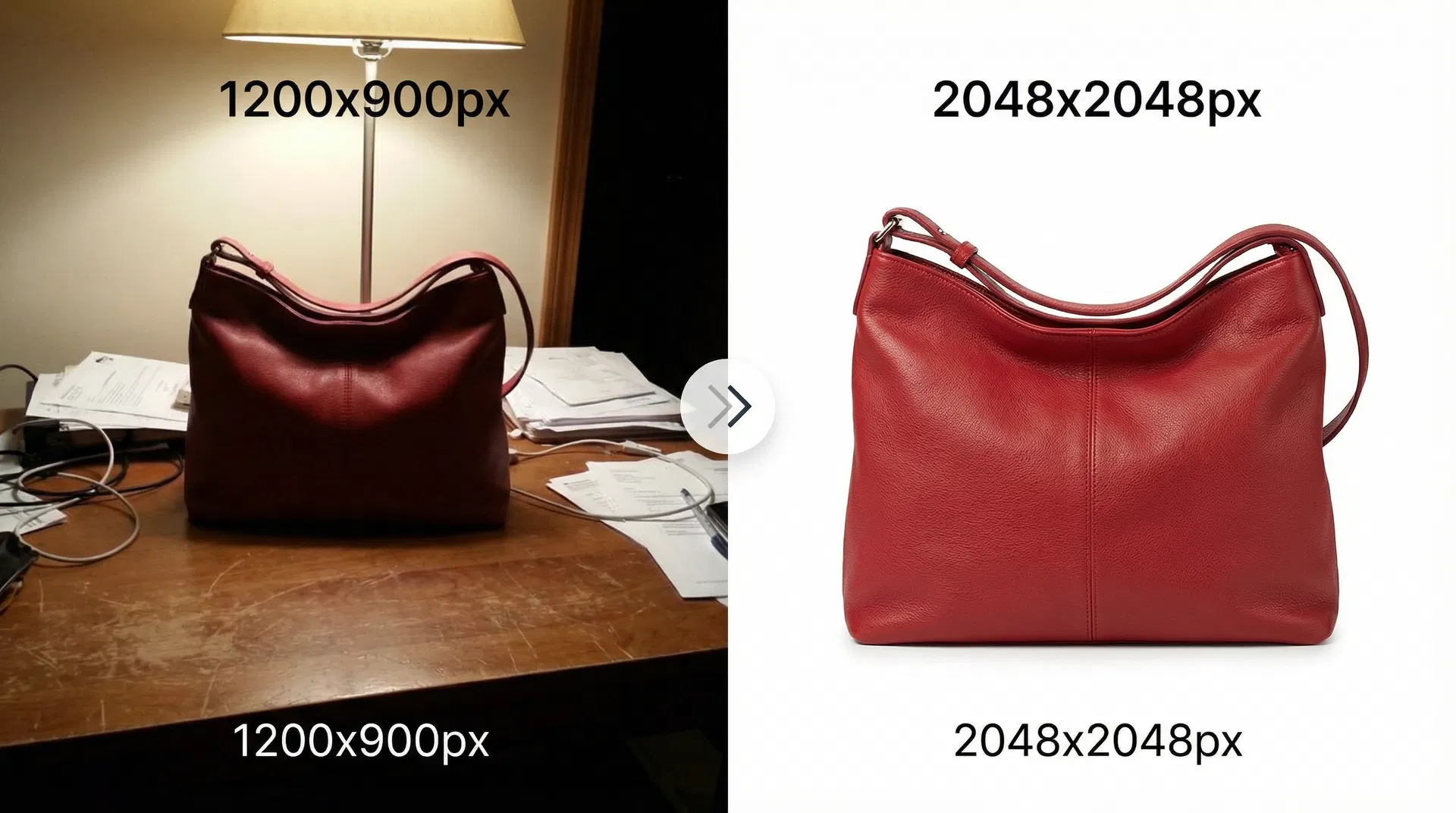
Shopify recommends square product images with a minimum resolution of 2048 x 2048 pixels. This size ensures images display clearly on high-resolution screens while providing enough detail for zoom functionality. Images smaller than 1024 x 1024 pixels appear pixelated on modern displays, damaging your professional appearance.
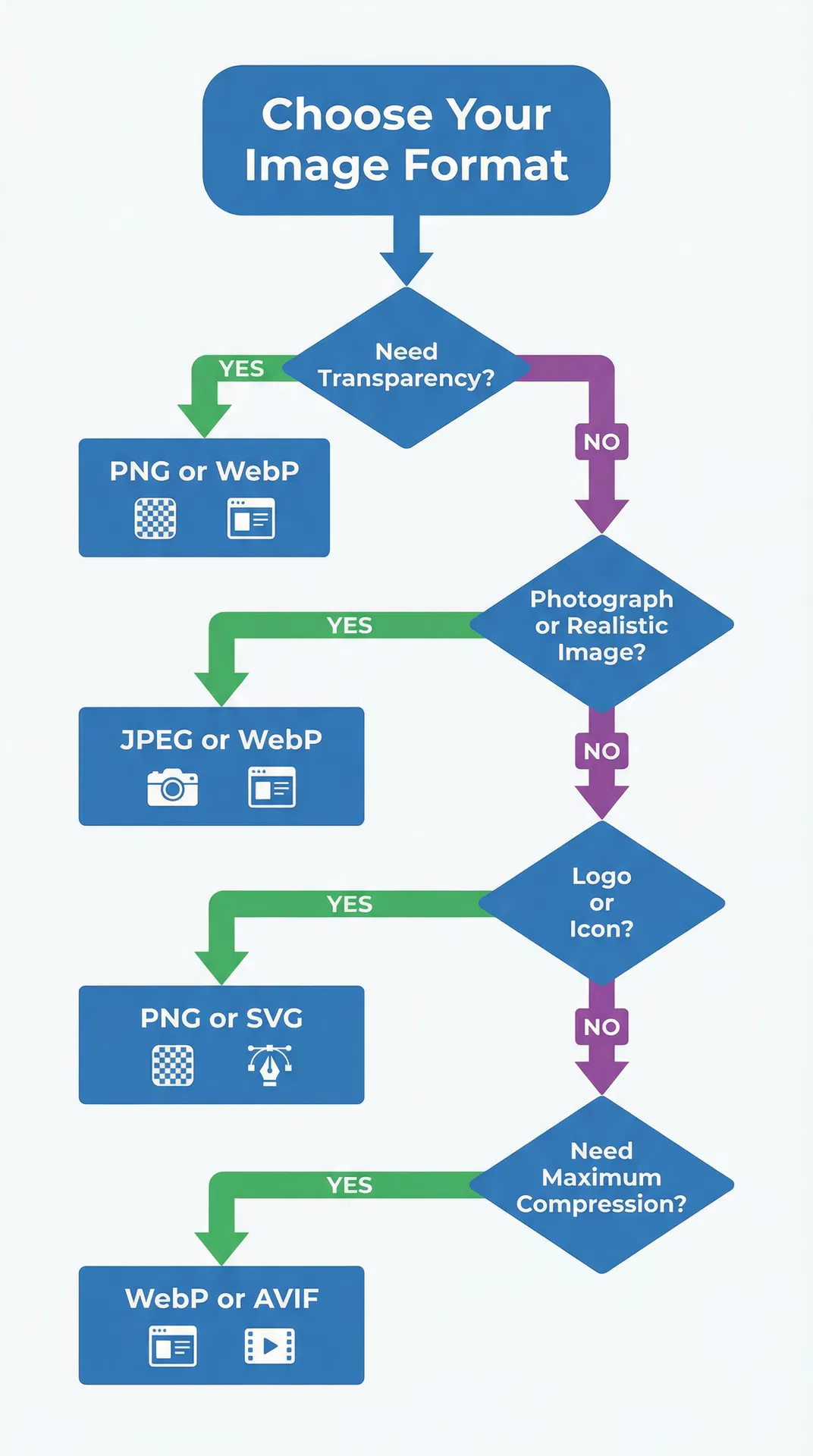
File format matters for both quality and performance. PNG files support transparency and work best for products you'll display on colored backgrounds. WebP files offer superior compression with minimal quality loss, reducing page load times significantly. JPEG files work well for white background images where transparency isn't needed, offering good compression and universal browser support.
Keep file sizes under 500KB per image to maintain fast page load speeds. Background removal often reduces file size by eliminating complex background textures, but always run processed images through compression tools before uploading. Every second of load time improvement increases conversion rates, making optimization worth the extra effort.
Maintaining Consistency Across Your Catalog
Visual consistency builds brand recognition and creates a professional shopping experience. When customers browse your collection pages, uniform image styling helps them focus on product differences rather than being distracted by varying photography styles.
Establish standard background choices for different product categories. White backgrounds might work best for home goods and electronics, while transparent backgrounds suit apparel and accessories. Custom brand-color backgrounds can differentiate limited editions or seasonal collections.
Apply the same background removal settings to all products within a category. Consistent edge quality, shadow effects, and background colors create visual harmony. Inconsistent styling makes your store appear unprofessional and reduces customer confidence.
Mobile Optimization Considerations
Over 70% of Shopify traffic comes from mobile devices, making mobile image optimization critical. Background-removed images with clean edges look sharper on small screens than busy backgrounds that become muddy when scaled down.
Test your product images on actual mobile devices, not just desktop browser emulators. Colors, contrast, and edge quality can appear different on phone screens. Ensure your products remain clearly visible against your theme's mobile background colors, which may differ from desktop versions.
Consider mobile page load speeds when choosing image formats and sizes. Mobile networks are slower than broadband connections, making file size optimization even more important. WebP format can reduce mobile image payload by 30-50% compared to PNG, dramatically improving mobile user experience.
Common Mistakes to Avoid
Even with powerful tools, certain mistakes can undermine your background removal results. Recognizing these pitfalls helps you avoid wasted time and subpar outcomes.
Over-Compression and Quality Loss
Aggressive compression destroys image quality, creating visible artifacts around product edges. These compression halos become especially noticeable against solid backgrounds, appearing as blocky pixels or color banding. Balance file size reduction with visual quality by testing different compression levels and viewing results at actual display sizes.
Save your master files at high quality before creating web-optimized versions. This practice lets you regenerate compressed versions if you later discover quality issues or need images for print materials. Never overwrite original high-resolution files with compressed web versions.
Inconsistent Lighting and Shadows
Products photographed in different lighting conditions create visual inconsistency even after background removal. Color temperature variations make some products appear warm (yellowish) while others look cool (bluish). Exposure differences result in some products appearing bright while others look dim.
Standardize your photography setup before shooting product photos. Use consistent lighting, camera settings, and positioning for all products within a category. Fixing lighting issues during photography is easier than correcting them in post-processing, and results look more natural.
Ignoring Edge Quality
Poor edge quality is the hallmark of amateur background removal. Harsh, pixelated edges make products look cut-and-pasted. Color fringing creates colored halos around product outlines. Overly smooth edges eliminate natural texture details.
Zoom in to 100% magnification when evaluating edge quality. Examine areas with fine details like fabric texture, hair, or intricate patterns. Check for color fringing by placing your product on different background colors and looking for unwanted color halos. Professional edge quality requires attention to detail that separates excellent results from merely acceptable ones.
Frequently Asked Questions
How much does background removal cost for Shopify stores?
Background removal costs vary widely based on volume and quality requirements. AI-powered tools like TrustedToolkit offer free tiers with 5 credits for new users, then charge per image or via monthly subscriptions. Professional manual editing services charge $0.50 to $5.00 per image depending on complexity. Shopify apps typically cost $10-$50 monthly for unlimited processing. For stores with large catalogs, monthly subscriptions offer the best value.
Can I remove backgrounds from product photos on my phone?
Yes, several mobile apps provide background removal capabilities. However, mobile apps typically offer less precision than desktop tools and may struggle with complex products. For professional Shopify stores, desktop tools or web-based AI platforms deliver superior results. Mobile apps work well for quick edits or social media content but aren't ideal for primary product photography.
What's the best background color for Shopify product photos?
White backgrounds (RGB 255,255,255) are the industry standard and work well for most product categories. They meet marketplace requirements, create a clean professional look, and perform well in search results. Transparent backgrounds offer more flexibility for themed designs and promotional graphics. Custom color backgrounds can reinforce brand identity but should be used consistently across categories.
How do I handle white products on white backgrounds?
White products require subtle shadows or edge lighting to separate them from white backgrounds. Add a soft drop shadow in your editing software to create depth. Alternatively, use a very light gray background (RGB 250,250,250) that appears white but provides slight contrast. Professional product photographers use edge lighting to create a thin highlight around white products, making them visible against white backgrounds.
Will background removal affect my Shopify store's load speed?
Background removal typically improves load speed by reducing file sizes. Removing complex backgrounds eliminates texture data, creating smaller files. However, saving images in inefficient formats or at unnecessarily high resolutions can negate these benefits. Always optimize processed images for web use, targeting file sizes under 500KB while maintaining visual quality. Use WebP format when possible for optimal compression.
Can I automate background removal for new products?
Yes, several Shopify apps automatically process new product images as you add them. These apps detect uploaded images, remove backgrounds based on your preset preferences, and save the processed versions to your media library. Automation works best when your product photography follows consistent standards. Products with unusual lighting, complex backgrounds, or special requirements may need manual review.
Start Removing Backgrounds from Your Shopify Products Today
Professional product photography no longer requires expensive equipment or advanced editing skills. AI-powered background removal tools democratize professional image editing, making it accessible to every Shopify store owner regardless of budget or technical expertise.
The method you choose depends on your specific situation. Store owners prioritizing speed and scalability benefit most from AI tools that process hundreds of images in minutes. Sellers with small catalogs and limited budgets can achieve excellent results with manual editing techniques. Growing stores should consider integrated Shopify apps that automate background removal as part of their product workflow.
Regardless of which method you choose, the impact on your store's performance is immediate and measurable. Clean, professional product images increase conversion rates, reduce bounce rates, and build customer trust. The time you invest in proper background removal pays dividends through increased sales and improved brand perception.
Ready to transform your Shopify product photos? Try TrustedToolkit's AI background remover free and process your first 5 images with no signup required. Experience the difference professional product photography makes for your store's success.
About the Author: This guide was created by the team at TrustedToolkit, providers of AI-powered image optimization tools for ecommerce sellers. Our background removal technology processes over 1 million product photos monthly for Shopify stores worldwide.